Django - Getting Started
Django - Getting Started
**This post was co-authored with fellow General Assembly Software Engineering Immersive member JC Coles, following some custom suggestions from our instructor Adonis **. Also, check out the entire “Getting Started with Django” Series
If you’ve written full stack applications in JavaScript using Node, Express, perhaps Mongoose for accessing a database, maybe some packages like Passport to help manage user authentication and authorization, etc, you quickly find yourself repeating the same setup patterns over and over. The only differences come in when you accidentally misconfigure a setting or a route and spend hours debugging. Django aims to, if not replace all of those steps, at least condense those disparate processes into one.
The following step-by-step guide will assist a beginning Python developer in launching a Django project on their local development server (and then deploying it to Heroku in the next blog post).
If you’re starting a brand new project, skip this section. Otherwise if you are downloading someone else’s project, run the following commands instead to properly configure it on your machine. This is the equivalent of running
npm iwhen freshly cloning someone else’s repo. When finished, continue at step “Creating a Home Page” below
python3 -m venv .envsource .env/bin/activatepip3 install -r requirements.txtpython3 manage.py migratepython3 manage.py runserver- Visit localhost:8000 in your browser
Having issues?
- if your project contains environmental variables, add them to an
.envfile inside your inner project folder (mine ispedalcollector_project/.env) - try reseting your database (you’ll lose anything you’ve added so be careful!)
DROPDB {{{your_database}}}andCREATEDB {{{your_database}}} - in settings.py, to run locally you’ll want
DEBUG=True; to deploy securely you’ll have to change toDEBUG=False. I manually set an env variable in each environment and thenDEBUGwill be set automatically.
Django Environment Setup (New Project)
Python can and should be run in a virtual environment; this relates to the fact that your actual operating system utilizes Python code and by safely keeping your projects in a protected environment, you minimize the risk of accidentally misconfiguring your entire system. In short, you’ll be simulating a mini-computer inside your computer, and running your Django project from there. You can quickly tell when your terminal is inside of the virtual environment by looking for the (.env) at the beginning of your terminal prompt:

New Folder
Create and navigate into a new folder that will contain your entire project
mkdir your_cool_thingcd your_cool_thing
Setup Local Git Repo
git initgit add .- `git commit -m “initialize a cool thing”
- optionally connect to a remote Github repo at this point
Virtual Environment
Create a virtual environment
python3 -m venv .env
Activate it
source .env/bin/activate
Database
Create a postgres database. You’ll need this exact name again soon, so write it in your project notes somewhere you’ll remember.
createdb example-db
example-dbis the example I’ll be using; you can use whatever you want throughout this post, just be consistent!
If you have weird errors while testing things and somehow perhaps have corrupt data in your database, you can easily remove and re-add the database with the following commands in your terminal:
dropdb example-dbcreatedb example-dbpython manage.py createsuperuser
Dependencies
Install Django and dependencies. Psycopg2 helps Python interact with your postgres DB (similar to how Mongoose allowed Node to easily interact with MongoDB)
pip3 install django-extensionspip3 install Djangopip3 install psycopg2
if that didn’t work run:
psycopg2-binary.
pip3 install python-decouple
please note there is a difference between python_decouple and decouple, you need the former.
Record those settings: requirements.text is the Django equivalent of your Node app’s package.json, informing everyone what settings and packages must be configured to function.
pip3 freeze > requirements.txt
Project Setup
Django projects can contain multiple Django apps.
New Project
Create a new project
django-admin startproject example .
Make a file to secretly store your local environmental variables (a.k.a. config vars)
touch example/.env
Make a git ignore file
touch .gitignore
Specify the files and folders to ignore
- Open the blank
.gitignorefile in VSCode
For a comprehensive
.gitignorefile like you might get from a create-react-app, you can visit gitignore.io and select Django. This will generate a complete file for you: click to view Django .gitignore
- Whether you build your gitignore or copy and paste from the site above, be sure it includes the following items:
# this hidden folder contains your local, virtual environment
.env

# this hidden file contains sensitive keys and environmental config vars
example_project/.env
Setting Up Environmental Variables
- in VSCode, open
settings.py(inside yourexample/folder) - scroll down to the line that declares the
SECRET_KEY=, and cut the entire line (CMD+x) - open the newly created
example_project/.envfile (it should be currently empty) - paste in the secret key from above, but be sure to remove the empty spaces around the
=and remove all quotes from the value after the=. You could also use any random secret string you like - add in
ENVIRONMENT=developmenton a new line - add in
DATABASE_NAME=example-db(or whatever you named your db that I told you to write down for later!)
Your .env file should end up looking like this:
ENVIRONMENT=development
SECRET_KEY={{{your_secret_key}}}
DATABASE_NAME=example-db
Reading In Env Variables
Now, we want to make our app read these sensitive or configuration dependent variables, whether it is in production (e.g. deployed to Heroku) or development (working locally on your own computer). To read variables from the .env file you created and filled in the last step:
- open settings.py
- add
from decouple import configat the top (right below the existing import) - where you removed the
SECRET_KEYline in settings.py, add back this line which will now read it dynamically (from your .env locally or your deployed config vars):SECRET_KEY = config('SECRET_KEY') - scroll to the line that says
DEBUG=Trueand replace with the following block:
if config('ENVIRONMENT') == "production":
    DEBUG=False
if config('ENVIRONMENT') == "development":
DEBUG=True- below, replace the line with
ALLOWED_HOSTSwithALLOWED_HOSTS = ['herokuapp.com','.localhost', '127.0.0.1', '[::1]']
If you will be deploying this somewhere else, replace Heroku with your actual app URL
Main App
Back in your terminal (which should still have the environment activated), create a second app within this project called main_app
python3 manage.py startapp main_app
If you’re having issues, make sure:
- you included the
.at the end of the start project command - you might need to use the command
pythoninstead ofpython3; this seemed to occur on newer Macs or machines wherepython --versionandpython3 --versionboth referenced the same release of Python. The error popping up was araise ImportErrorwith the messagecouldn't import django no module found
Let Django know about your 2nd app:
- Open the project in VSCode:
code . - Open your project settings:
example_project/settings.py - Scroll down to
Installed_Appsand addmain_app,as the new first element in the array. Remember the comma!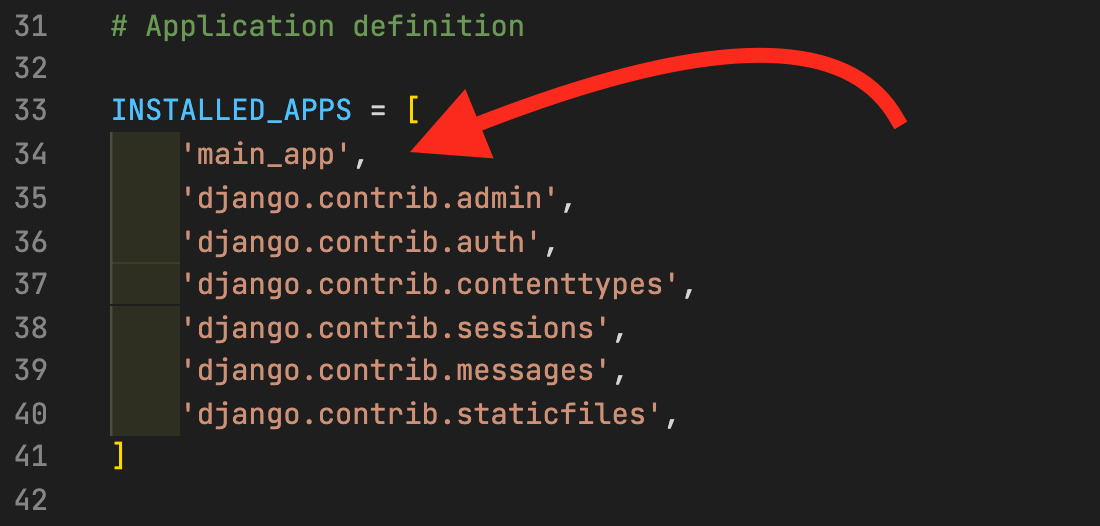
Development Server
Start up the development server on your local machine
python3 manage.py runserver- Open a browser and visit localhost:8000 to see your site (well, just the fun rocket for now…)
Development Database
Configure the project for postgres by changing the database entry in settings.py, and reading the database name as an environmental variable.
# new database info
DATABASES = {
    'default': {
        'ENGINE': 'django.db.backends.postgresql',
        'NAME': config('DATABASE_NAME'),
    }
}
Migrations
Stage the db migrations (kind of like git adding and committing, but for changes to the database schema as the app evolves over time
- stop the development server by going back to your terminal and pressing
CTRL+C python3 manage.py makemigrations(this probably won’t do anything)python3 manage.py migrate(this should run through the models in the app like the built in users, and add this info to your database)
Restart your server (you can do this regularly while debugging)
- start your server again:
python3 manage.py runserver
Creating a Home Page
Add a home route
Routes are defined in the urls.py file(s); you could add all of your routes to example_project/urls.py, but it is best practice for each Django app to define its own and include a link to the new URLs file in the project’s URLconf:
- stop the server:
CTRL+C touch main_app/urls.py- Open the newly created file in VSCode
- Set up the imports and basic route using the code below:
from django.urls import path
from . import views

urlpatterns = [
    path('', views.home, name='home'),
    # more routes will go here
]
Using an empty string
""as the first parameter inpath()is telling Django to route the base URL with no added paths to the home view (e.g.your-project.com/Later we will add more routes, for example using"about/"as the first argument in the new route, and linking that to anaboutpage, which the user will access by going toyour-project.com/about
Now, include this new file in the existing project’s urls.py
- Open
example_project/urls.py - Add a new item to the
urlpatternsarray, making sure the items are separated by commas - Also you will need to import the
includefunction before calling it in the array - It will end up looking like this:
from django.contrib import admin
# from django.urls import path
# add include to your imports from django.urls
from django.urls import path, include

urlpatterns = [
    path('admin/', admin.site.urls),
    # add this line below
    path('', include('main_app.urls')),
]
Add a home view
Now that the home route knows where to direct the client, you need to make a home view as a connector between the current route and the correct template to render. Open up your views.py and add the following method:
def home(request):
    return render(request, 'home.html')
Add a home template
Starting very simply, you’ll create the home.html file
mkdir main_app/templatestouch main_app/templates/home.html- Open
home.htmlin VSCode and paste in some valid HTML as a starting point:
Tip: to save a step, in VSCode you could right click on main_app in the navigation bar, and select “New File”, and then add the line
templates/home.html. This will create the templates folder and also the html file in one command
<!DOCTYPE html>
<html>
    <head>

    </head>
    <body>
        <h1>Home</h1>
    </body>
</html>
Back in your browser, visit localhost:8000 and refresh to view your sweet new home page. If it doesn’t work, remember to restart your Django server:
python3 manage.py runserver
Done!
You should now have a functioning (very simple) Django app within your project, viewable on your local machine. To continue building, follow the next steps:
- Adding more routes, templates, and rendered data (blog post currently being written)
- Reading from your database (blog post currently being written)
- Deploying your Django app on Heroku
Cover Photo by Jukan Tateisi on Unsplash Pedalboard Photo by Jonathan Dubon on Unsplash