Renaming Your GitHub Projects
Renaming Your GitHub Projects
If your projects start generically and later grow into something cool (or the focus changes completely) it’s easy to change their names and stay organized. It requires renaming locally: mv {{{ OLD_FOLDER_NAME/ }}} {{{ NEW_FOLDER NAME/ }}}, renaming remotely on GitHub (via their web interface), and updating the connections between the two: git remote set-url origin {{{NEW_GITHUB.GIT_URL}}}
Two Repos
The biggest thing to understand when you’re first starting off with git and GitHub is that they are two different things! Like Java and JavaScript, just because one name contains the other doesn’t mean they are the same. Git is the program that runs on your machine and keeps track of incremental changes to selected projects. GitHub is an online company (owned by Microsoft now) that allows you to store and share your git repositories online. It also allows for all sorts of wonderful collaboration via the web interface.
Specifically, if you have a project on your computer that’s also on GitHub, you are managing two distinct git repos. You are likely keeping the two syncing by using git pull and git push from your local machine. If you decide to change the name of a project, there are a few simple but crucial steps you need to take to keep everything consistent for your own organization and for this connection to be maintained.
Rename the remote repo
You could do these steps in any order, but I like to start with the visual interface provided by the GitHub website. Head to the GitHub repo page for the project you’d like to change the name of.
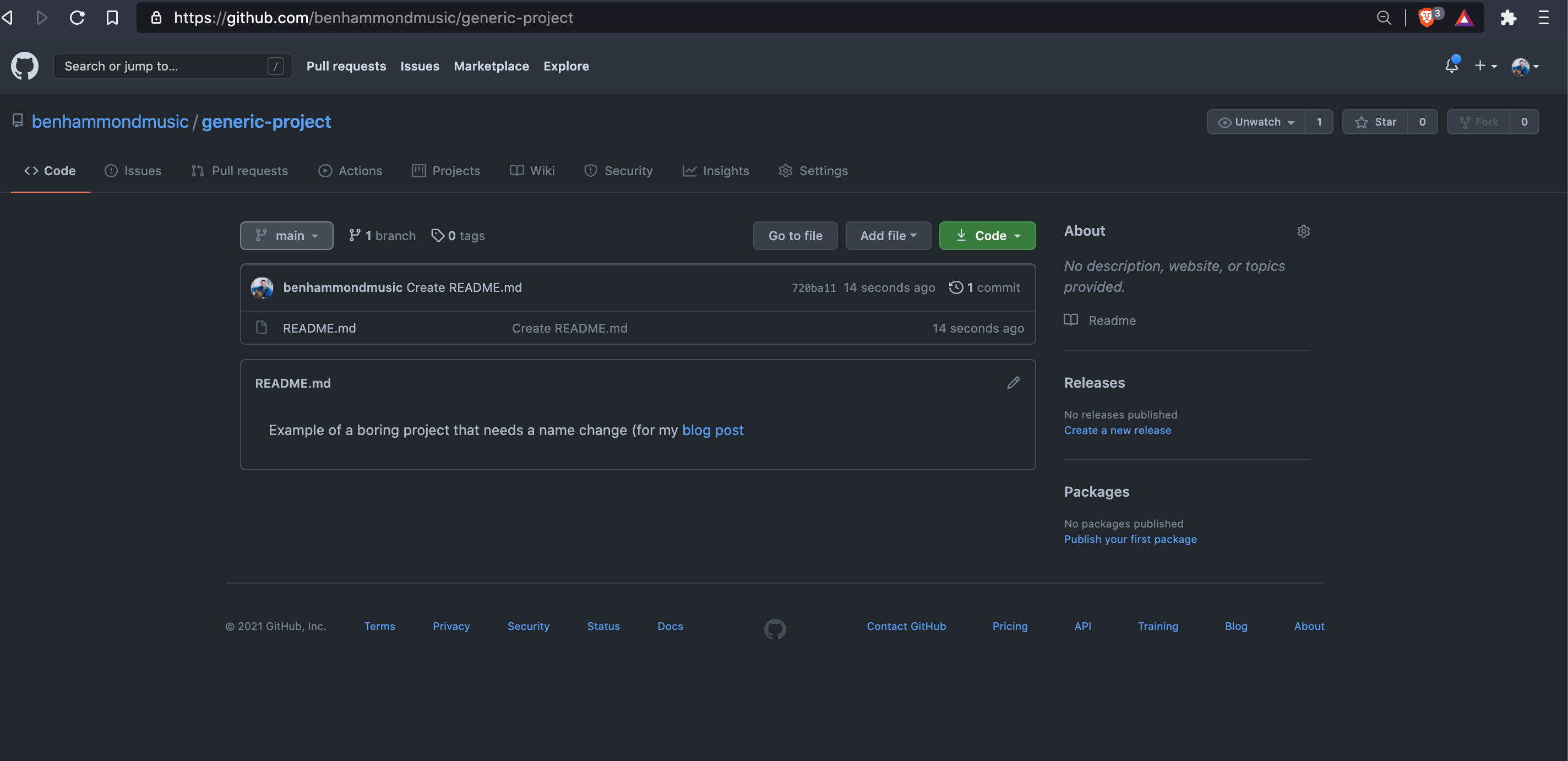
Rename on GitHub using the web interface
- Click on “settings” (next to “insights” on the horizontal navbar)
- Type in a new name in the “Repository Name” box. In general, avoid using spaces or weird symbols in any file or project names
- If that name is available (i.e. you haven’t used that exact name before) you’ll see a green check mark, and you can then click “Rename”
Copy the new URL
- You’ll be redirected back to your repo page
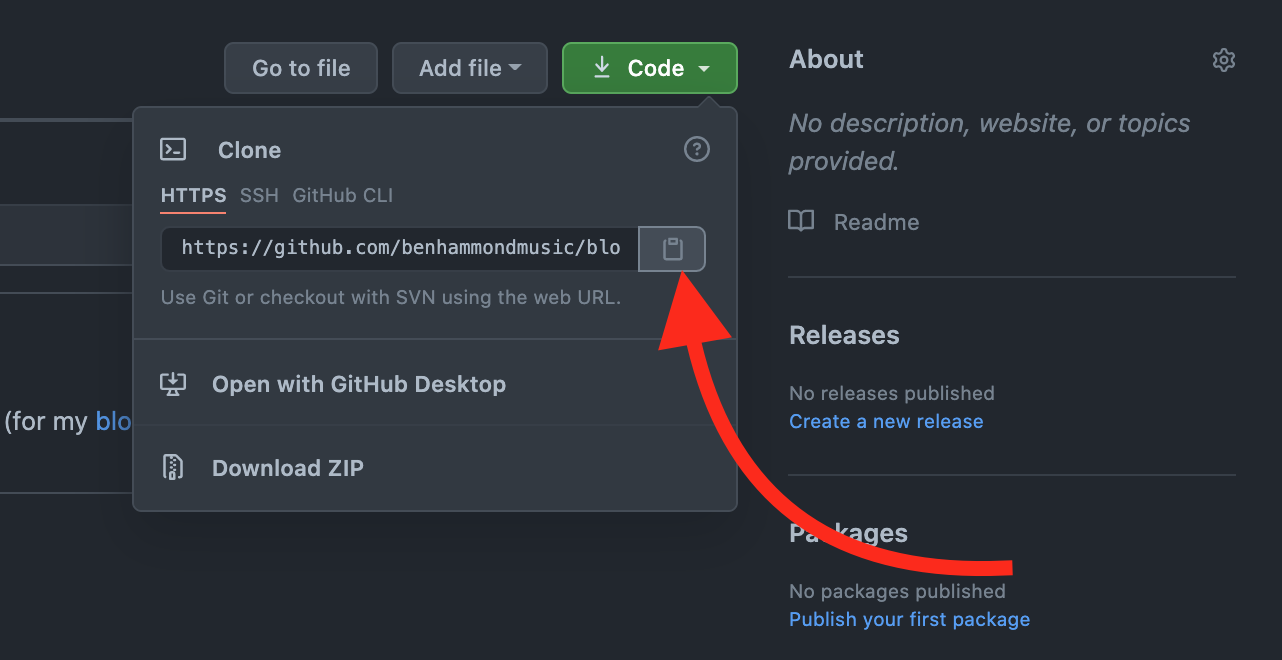
- Click on the green “Code” button/dropdown
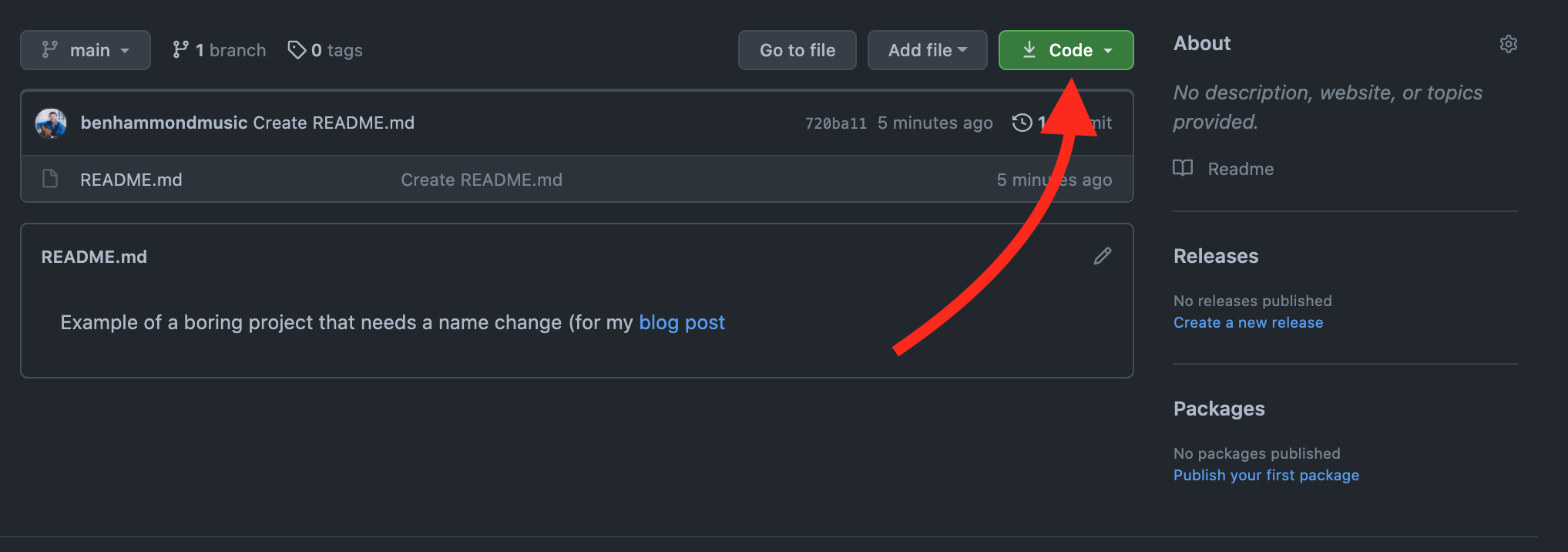
- Click the clipboard icon button, which will copy the project’s .git url to your computer’s clipboard. This will be the new URL for your remote repo.
Rename the local repo on your computer (using terminal)
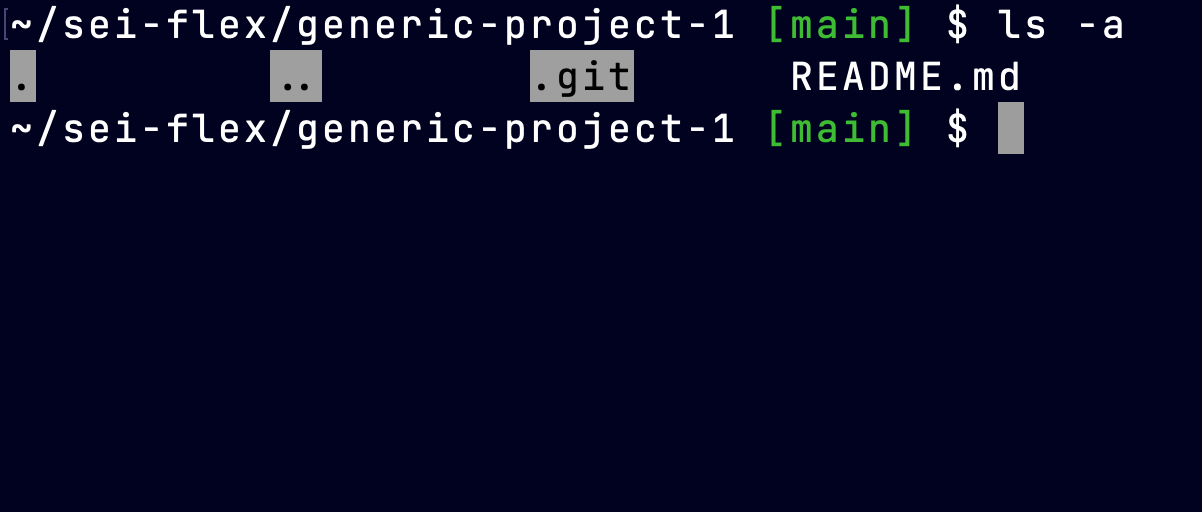
Back on your computer, load up your terminal and cd your way into your local project folder. Note: by default .git files are hidden, meaning using ls in terminal will not show your .git folder. You can type ls -a to confirm you’re in the right folder when you see your .git folder displayed.
Set your new git remote
- Once you confirm you’re in the correct folder in your terminal, type
git remote -v. This will display all of your remotely connected .git repos. Below mine only shows the old GitHub repo, but if you have deployed to Heroku or Netlify using their CLIs, you will see other remote locations besideorigin
origin	https://github.com/benhammondmusic/generic-project-1.git (fetch)
origin https://github.com/benhammondmusic/generic-project-1.git (push)- Since these old remote links are now out of date from our GitHub project’s new name, we need to set the new url .
git remote set-url origin {{{PASTE_THE-COPIED_GITHUB_URL_HERE}}}. In my example, the full command isgit remote set-url origin https://github.com/benhammondmusic/cool-new-name.git. Make sure your URL ends with “.git”. - If you have a different setup, or are trying to change a different repo (for instance on Heroku, etc), replace the word
originwith the name of of your remote location (e.g.heroku). - Test that the git remotes have been updated properly by again running
git remote -v. It should show the updated remote URLs:
origin	https://github.com/benhammondmusic/cool-new-name.git (fetch)
origin	https://github.com/benhammondmusic/cool-new-name.git (push)
Important! If you have you collaborators on this project, they will each need to update their local git remotes using this same command!
Rename your local repo
You could leave everything as is now, and be able to git push and git pull your changes between the local and remote repos with no problem. However, personally I like to update my project’s local folder to match the new name of the remote repo.
- Confirming you are still in the same folder as the above step (at the level where your .git file is), type
cd ..to go up one level. - Confirm you’re in the right place by typing
lsand viewing your old project folder name in the displayed list of folders and files - Change the folder’s name by using
mv {{{ OLD_FOLDER_NAME/ }}} {{{ NEW_FOLDER _NAME/ }}}. In my example, my command ismv generic-project-1/ cool-new-name/ - Again, confirm by using
lsand your new project name should be displayed instead of the old name
Things to note:
mvcommand can be used to move files and folders, or to rename them. It’s weird, but it’s just the way it is- Confirm that both of your {{{ FOLDER_NAME/ }}} names above end in a trailing slash:
mv generic-project-1/ cool-new-name/not mv generic-project-1 cool-new-name. The trailing slash tells the command it’s a folder, not a file
Bonus Points: Update the GitHub project’s “About”
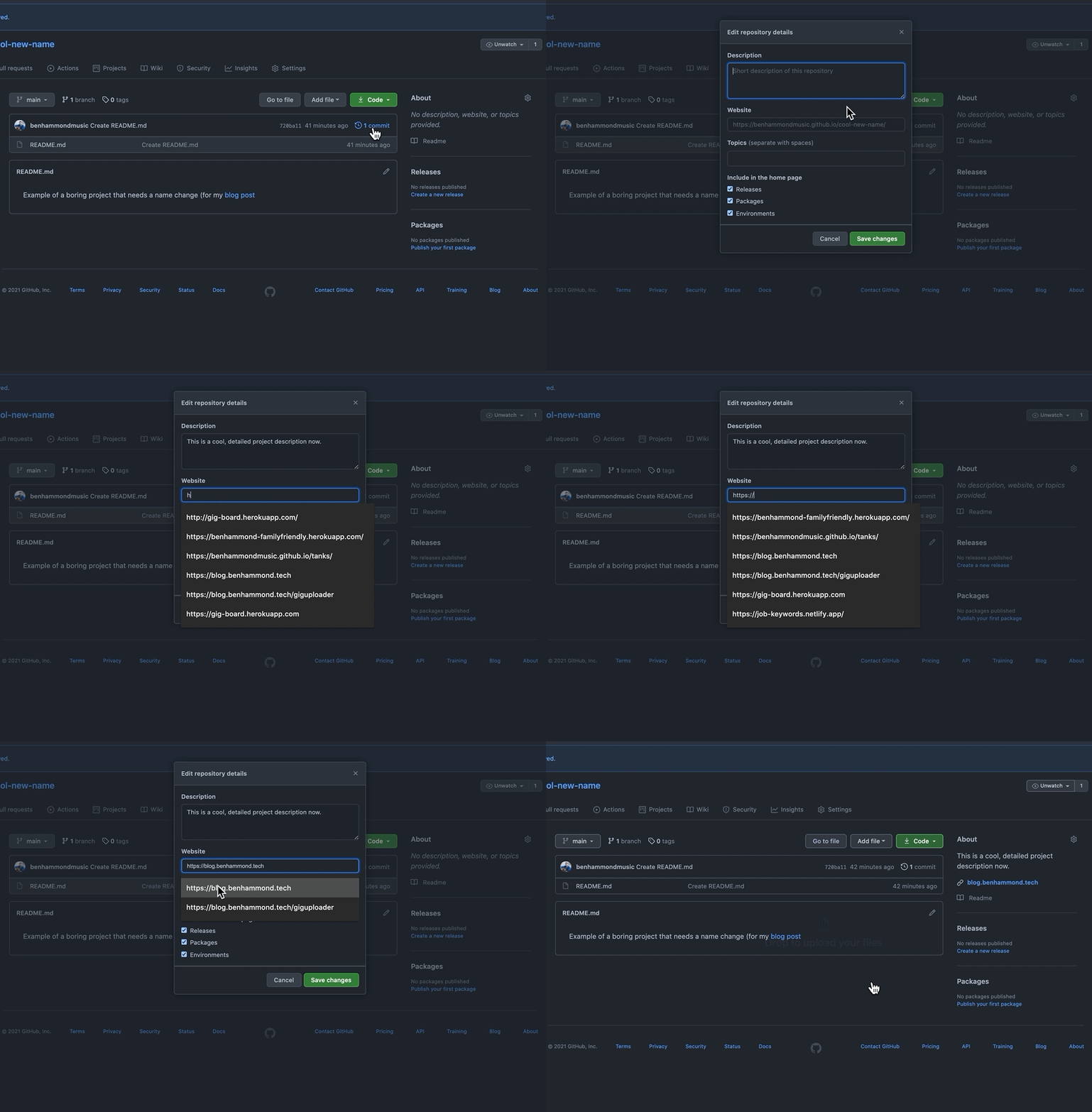
This is one aspect of GitHub that gets neglected but can make a big difference in your presentation. You should, of course, be including a README.md file to explain the whats, whys and hows of your projects, but don’t forget to keep the little sidebar “about” section up to date as well.
- Click the gear icon (not the gear on the “settings” tab though) and update the description field.
- Make sure you include any URL where the app is deployed as well!
If you need help deploying, I have several blog posts detailing how to complete that process:
- Deploying a Create-React-App to Netlify
- Deploying an Express Backend to Heroku
- Deploying a React App Frontend to Heroku
- Connecting MERN Fullstack Heroku Deployments
Hopefully this has helped you in keeping your projects updated and organized! Let me know if you have any issues or suggestions on better ways to do this. Thanks!
Photo by Helena Hertz on Unsplash